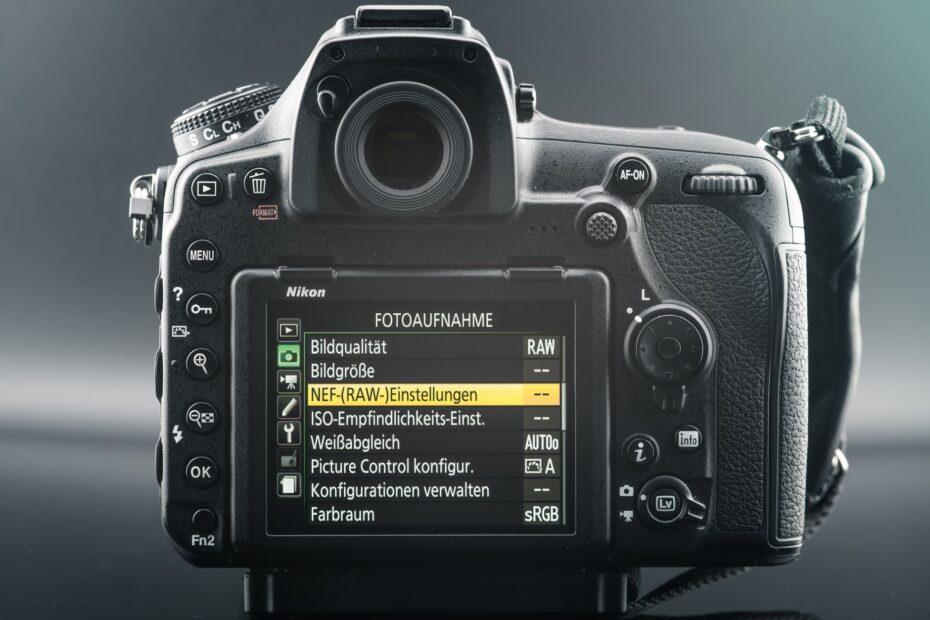
A RAW file preserves minimally processed sensor data, while a JPEG delivers a finished, compressed image. Your camera records the same exposure in either format, but JPEG applies color, contrast, sharpening, and compression immediately, while RAW preserves more capture data for later editing.
This comparison helps you match file format to your camera workflow, from bit depth and dynamic range to memory card storage, editing time, and delivery speed.
One Exposure Produces Two Different File Types
A shutter press records light through the same lens, focus point, shutter speed, aperture, and ISO setting. Your file choice changes what the camera saves after capture, not the light that reached the sensor.
A RAW image file stores minimally processed sensor values. A JPEG image file stores rendered pixels that your camera image processor has already shaped for viewing, sharing, and printing. RAW holds ingredients for a later edit; JPEG is the camera’s finished rendering.
| File characteristic | RAW image file | JPEG image file |
|---|---|---|
| Saved content | Minimally processed image sensor data | Camera-rendered pixels |
| Editing latitude | Broad control during conversion | Less room after camera processing |
| Immediate use | Needs compatible conversion software | Opens on phones, browsers, and printers |
| File size | Usually 20 MB to 60 MB or more | Usually 3 MB to 15 MB |
| Common purpose | Careful editing and archival flexibility | Fast delivery and direct sharing |
Your camera does not gain focus accuracy or motion-stopping power from RAW. Missed focus remains missed, and subject blur remains blur. The advantage is that your editing software receives more captured information before it renders visible pixels.
That distinction defines the central RAW vs JPEG choice. RAW delays several visual decisions until your editing session, while JPEG commits those decisions in camera. The processing path explains why files from one exposure can look so different.
Camera Processing Shapes the Saved Image
The Sensor Captures Light Values Before Color Rendering
Each sensor pixel records light through a colored filter, usually red, green, or blue. That filter grid is not yet a full-color photograph. Your camera or conversion software must interpret the pattern before it displays a complete image.
Demosaicing estimates full-color pixel values from that filtered grid. A Canon CR3, Nikon NEF, Sony ARW, or Fujifilm RAF file carries data that software must decode. Your selected converter affects color, fine detail, and the starting appearance of the image.
- Light reaches silicon. Your sensor records brightness values through its color-filter array during the exposure.
- Demosaicing builds color. Software estimates red, green, and blue values for each visible pixel.
- White balance shifts color. The camera offsets warm tungsten light or cool shade through a selected color setting.
- Picture styles shape contrast. Camera profiles alter saturation, tone curves, and color rendering.
- Detail processing finishes pixels. Sharpening and noise reduction alter edge crispness and grain before JPEG saving.
- Compression reduces file weight. JPEG removes some image information to make storage and transfer lighter.
JPEG Stores the Camera’s Rendering Decisions
A JPEG passes through the camera image processor before it reaches your memory card. Contrast, white balance, sharpening, noise reduction, saturation, and picture style become part of the saved pixel data. The camera then uses lossy compression to reduce file size.
RAW records the sensor capture before most display decisions become permanent pixels. Adobe Lightroom, Capture One, darktable, and Adobe Photoshop Camera Raw interpret that data during conversion. Your edit starts with more source information, though every RAW file still needs a rendering recipe.
Software compatibility deserves attention because RAW is not one universal file type. A new camera model can arrive before an older editing app recognizes its files. Adobe DNG offers a more standardized container for some workflows, but a DNG conversion does not add missing sensor data.
That processing path leads to tonal precision. A file with more available brightness steps tolerates stronger editing before smooth tones break into visible bands.
Bit Depth and Compression Set Editing Latitude
Extra Tonal Steps Protect Smooth Gradients
Standard JPEG output uses 8 bits per channel, which gives 256 tonal values for red, green, and blue. Dedicated-camera RAW captures commonly record 12 or 14 bits per sensor sample. Those extra values give your conversion software finer steps before export.
Your final JPEG can still look excellent, because bit depth does not repair weak light, poor exposure, or soft focus. Its value appears during heavier corrections. A pale sunset gradient, a face lit by window light, or a shadowed gray wall reveals the difference faster than a busy street scene.
| Editing situation | 8-bit JPEG behavior | 12- or 14-bit RAW behavior |
|---|---|---|
| Heavily darkened blue sky | Can show abrupt bands between blue tones | Retains finer tonal steps for smoother transitions |
| Warm indoor color correction | Pixel colors shift after camera processing | Color temperature is interpreted during conversion |
| Two- to three-stop shadow lift | Noise and color blotches can rise quickly | More original data can produce a cleaner adjustment |
| Repeated file saving | New compression can add blocks and ringing | Original capture remains untouched during edits |
Lossy Compression Trades Data for Faster Files
JPEG compression removes detail that is less visible at normal viewing sizes. A single export at sensible settings can look clean. Fine leaves, hair, fabric texture, lettering, and hard color edges can show blocks or halos after strong edits.
Repeated JPEG editing and saving adds fresh rounds of lossy compression. Your third or fourth saved version can carry more artifacts than the original, especially around dark branches against a bright sky or smooth blue backgrounds. Edit a copied JPEG, then export once after your adjustments are complete.
Keep the original JPEG untouched. Your adjusted version belongs in a separate file, because reopening and resaving the same compressed image compounds visible damage.
RAW uses more storage because it retains more capture data and avoids JPEG-style processing choices. That extra data explains its editing latitude, but it does not explain why an unedited RAW preview can appear flat beside the camera JPEG.
That polished first impression comes from rendering choices applied before the file ever reaches your editor.
JPEG Files Look Finished Straight From the Camera
Camera Rendering Adds Contrast and Detail Before Viewing
Many cameras display a JPEG preview on the rear screen even after a RAW capture. Your eye then compares that polished preview with a neutral RAW rendering in Lightroom or Photoshop. The files are starting from different points, not different levels of camera capability.
JPEG rendering applies a tone curve that deepens shadows and brightens selected midtones. It can enrich blue skies, warm skin slightly, sharpen edges, and smooth high-ISO speckling. Those choices make a family snapshot feel ready to send without another stop at a computer.
Your RAW file can appear gray, low in contrast, or less crisp because conversion software starts with a restrained profile. That quieter starting point leaves room for your own choices. A sunrise landscape can take a warmer white balance and controlled highlight reduction without starting from an aggressive camera look.
A Finished Appearance Does Not Equal Greater Editing Potential
Consider a portrait under warm restaurant bulbs. The JPEG can look pleasant because the camera guessed the room color well and smoothed high-ISO noise. The RAW version can look yellow and dull at first, yet your editor can set a neutral white balance from a napkin or wall and then tune skin color.
RAW does not automatically look better. A well-exposed JPEG using a camera picture style that suits your subject can beat a careless RAW conversion. Your exposure skill, color judgment, and editing choices carry more weight than the file extension alone.
- Vivid JPEG color. Your camera can raise saturation and contrast through a selected picture style.
- Crisper JPEG edges. In-camera sharpening adds local contrast along eyelash edges, rooflines, and lettering.
- Cleaner JPEG shadows. Noise reduction smooths dark areas, sometimes at the cost of tiny texture.
- Flatter RAW preview. Your software starts with a flexible interpretation rather than the camera’s final recipe.
- Different software profiles. Adobe, Capture One, and camera-brand software can render the same RAW capture differently.
The polished JPEG supports a fast workflow, yet its baked appearance has a trade-off. White balance correction, highlight recovery, and heavy exposure repair become less forgiving after the camera has committed the pixels.
RAW Editing Preserves Flexibility Within Real Limits
Adjustment Instructions Leave the Source Capture Intact
A RAW editor records adjustment instructions separately from the original capture. Your exposure slider, white balance setting, highlight reduction, color grading, lens correction, and noise controls remain adjustable without rewriting the source file. That is the practical value of non-destructive editing.
White balance gives you a clear example. In a RAW file, your converter applies color temperature during rendering, so moving from 3200K tungsten correction to 5000K daylight correction does not repeatedly damage pixels. In a JPEG, that color relationship has already been mapped into saved image data.
Dynamic range describes the span between useful shadow detail and useful highlight detail. RAW gives your edits more latitude inside that span. A bride near a bright window or a canyon wall under hard noon sun gives your controls more room to separate bright and dark areas.
Clipped Highlights and Severe Underexposure Remain Lost
Sensor values have a ceiling. Once a highlight reaches that ceiling, the file contains no texture beyond pure clipping. A blown white shirt can remain blank in RAW even after your highlight slider moves down three stops.
Dark areas have limits too. Lifting a severely underexposed RAW capture can reveal random noise, blotchy color, and reduced detail. Your camera cannot record clean color where too few photons reached the sensor.
Check the histogram and highlight warning in harsh light. A small exposure adjustment before the shutter press protects detail that no RAW converter can reconstruct later.
RAW recovery works best with modest errors, such as a one-stop exposure correction or a white balance shift under mixed light. It does not rescue clipped windows, motion blur, missed focus, or a subject buried in near-black exposure.
Because RAW needs conversion before routine delivery, its recovery value carries a practical delay. JPEG stays usable at once, shifting your format choice from image potential to the pace and scale of the assignment.
Larger RAW Files Change Storage and Delivery Work
File Size Affects Buffers, Cards, and Transfer Time
A 24-megapixel camera may write a 5 MB JPEG beside a 25 MB RAW file, though subject detail and camera settings change actual sizes. Your 64 GB card holds far fewer RAW captures. During bursts, larger files can fill the camera buffer sooner and slow further shooting.
Sports coverage makes that limit visible. A sequence of 30 frames during a finish-line sprint can clear from the buffer faster as JPEGs than as RAW files. Your camera model, card speed, and compression setting shape the gap, so check the remaining-frame count on your own camera.
Transfer time grows after the shoot. Copying 2,000 RAW files, building previews, uploading backups, and syncing cloud storage can take hours longer than moving camera JPEGs. Your computer also needs more fast local storage for smooth culling and editing.
A Disciplined RAW Routine Protects Future Edits
High-volume photographers sometimes choose JPEG for newsroom delivery, school portraits, or convention coverage. A dependable in-camera rendering suits work where several thousand files need light sorting and rapid handoff. RAW is a tool, not a moral standard.
For work that needs later control, use a consistent post-processing routine:
- Copy before formatting. Move your memory card files into a dated folder before you format the card in camera.
- Keep two backups. Store one copy on a separate drive and another copy away from the main computer.
- Review sharp frames. Flag usable images and remove clear misses before generating heavy previews.
- Edit without rewriting. Save adjustments in a catalog, sidecar file, or compatible RAW editor database.
- Export delivery JPEGs. Send JPEG files for web galleries, messaging, and standard lab printing.
- Retain RAW originals. Keep source captures so future edits can use newer software or a different visual direction.
Your storage plan needs room for backups, not only the active shoot folder. A 1 TB drive can fill quickly after several weddings, sports seasons, or product catalogs. Account for RAW originals, preview caches, exported JPEGs, and duplicate copies.
That workload cost narrows the decision to the assignment in front of you. Difficult light can justify every extra gigabyte, while a same-day deadline can make the smaller camera-rendered file the stronger fit.
Assignment Needs Decide the Better Format
Speed and Editing Demands Set the Priority
A wedding ceremony combines dark interiors, bright windows, mixed lighting, and moments that cannot be repeated. RAW gives your exposure and color edits room to breathe in that setting. A daytime youth tournament with same-day gallery delivery may favor JPEG, especially where your camera’s color and autofocus results are dependable.
| Assignment | Practical file choice | Reason for your choice |
|---|---|---|
| Wedding coverage | RAW or RAW+JPEG | Your files face mixed light, white dresses, dark suits, and major keepsake value. |
| Sports and action | JPEG or RAW+JPEG | Your burst depth and delivery pace can matter more than extensive tonal repair. |
| Travel photography | RAW+JPEG or RAW | Your changing light and once-only locations reward retained editing flexibility. |
| Real estate interiors | RAW | Your window views and room shadows need controlled dynamic-range work. |
| Product photography | RAW | Your color matching, background cleanup, and catalog consistency need careful conversion. |
| Social media posts | JPEG | Your file needs quick viewing, fast transfer, and limited editing before posting. |
| High-volume events | JPEG | Your storage, culling time, and deadline can outweigh deep adjustment latitude. |
RAW suits difficult light, high-contrast scenes, color-critical product work, and files headed for substantial editing. JPEG suits fast turnaround, large volume, and situations where your camera’s rendering already matches the needed result. RAW vs JPEG image quality depends on exposure, conversion, and final use, not the extension alone.
Dual Capture Serves Immediate and Later Needs
RAW+JPEG dual capture writes both formats from one exposure. Your JPEG can go to a client, phone, or live display immediately, while the RAW original remains available for a refined edit. Canon, Nikon, Sony, and Fujifilm commonly place this setting in image-quality menus.
The compromise doubles file count and adds pressure to memory card storage, transfer time, and backup space. Use it for an event where your immediate JPEG matters but a key frame could later need highlight recovery or color work. Skip it for routine shoots where one format already fits your delivery plan.
Smartphone RAW changes the calculation. Apple ProRAW, Google Pixel RAW capture, and some Android camera apps retain editable data, yet phone JPEG or HEIF output can blend multiple exposures, face tuning, and computational noise reduction. Your phone’s processed image can outperform a single RAW capture in dim light, while RAW gives your color and tone edits more control.
HEIF stores image data more efficiently than JPEG in supported workflows, but broad compatibility still favors JPEG for delivery. TIFF belongs later in your process, mainly for a large edited export where your print workflow needs a high-quality raster file. Neither HEIF nor TIFF replaces a camera RAW capture.
Those output formats belong later in the workflow, whereas the camera setting determines how much information you retain.
Final File Choice
Your strongest choice follows the assignment, not a format slogan. Shoot RAW where light is difficult, colors must match, or your edit carries real value. Choose JPEG where speed and volume rule the day.
Use RAW+JPEG where both needs exist. Protect the original capture, because your future edit should not be limited by a rushed choice at the camera.
FAQ
Is it better to use RAW or JPEG?
RAW is better for your work where you need wide exposure, color, and white balance control after capture. JPEG is better for your work where fast delivery, smaller files, and dependable camera rendering matter more than heavy editing latitude. Neither format repairs poor focus or motion blur.
When should I use RAW instead of JPEG?
Use RAW for weddings, landscapes with bright skies, real estate interiors, product photos, and scenes with mixed lighting. Your editing software can use retained sensor data for controlled highlight recovery, shadow recovery, and white balance correction. Choose JPEG for rapid delivery or very high frame counts.
Why do my JPEGs look better than RAW files?
Your camera has already added contrast, saturation, sharpening, noise reduction, and a picture-style recipe to the JPEG. A RAW preview starts with a more restrained conversion, so it can look flatter before editing. Your final RAW export can match or exceed that camera rendering after deliberate adjustments.
Can you convert a JPEG to RAW?
Wrapping a JPEG in a RAW-like container cannot restore discarded sensor data, bit depth, or clipped highlight detail. The result remains a processed 8-bit image at its source. Keep the original RAW capture where later editing flexibility matters to you.
Should you shoot RAW+JPEG?
RAW+JPEG dual capture suits your work where you need an immediately shareable file and a flexible original from the same moment. Your card, buffer, storage, and backup system must handle twice the file output. It suits events, travel, and client work with fast previews.